Ads inside ChatGPT are live, and getting a business actually running on the platform takes a lot more than the pixel documentation lets on.
OpenAI’s developer docs cover the measurement layer well enough, but they say almost nothing about the operational half: verifying your business, preparing creative that renders correctly, and the actual screens where campaigns, ad groups, ads, and audiences get built. This guide covers both halves. The setup walkthrough comes from running real campaigns in OpenAI Ads Manager, with screenshots from a live account, and the measurement half is grounded in OpenAI’s official documentation with sources linked throughout.
Setting Up an OpenAI Ads Account for Real
Six steps take you from nothing to a serving, measurable campaign: verify the business, prepare a logo that works in the chat interface, then build the campaign, ad group, and ad, and finally wire up audiences for retargeting. The order matters, because the first step has a review delay and the campaign step depends on conversion tracking already existing.
Step 1: Business Verification
Nothing serves until OpenAI verifies your business, and the verification form asks for two things that trip people up more than they should: your EIN and the exact legal name of your registered business.
Exact means exact. The name you enter has to match what’s on file with the IRS for that EIN, letter for letter, including the entity suffix. If the IRS record says “Acme Widgets, Inc.” and you type “Acme Widgets” or “Acme Widgets Inc” without the comma, expect a rejection and a resubmission cycle. Pull your EIN confirmation letter (the CP 575) or a prior tax filing and copy the name from there rather than from your website footer, because marketing names and legal names drift apart over the years.
Start verification before anything else. Review is not instant, and everything in the following steps can be built while it’s pending, so the verification clock should be running in the background from day one.
Step 2: A Square Logo on a Solid Background
Your logo renders as a small square tile next to your business name on every ad, and the safest asset is a square logo on a solid background, ideally dark.
The reasoning is practical. Ads render inside ChatGPT conversations in both light and dark themes, and a transparent PNG gambles on whatever sits behind it: a white logomark on a transparent background disappears entirely in light mode. A solid dark background holds contrast in both themes and reads cleanly at the small tile size. Keep the mark centered with breathing room on all sides, since the tile gets rounded corners and edge-to-edge artwork gets clipped. A 512×512 PNG is plenty.
Step 3: Create the Campaign
Campaigns hold the money, the targeting, and the conversion goal. Here’s the full campaign editor:

Working down the form:
- Campaign Name: internal only, so name it for reporting. A product-plus-destination pattern like “WIDS – Homepage” tells you what’s being sold and where clicks land.
- Objective: the metric the campaign optimizes toward. Choosing Conversions here is what makes this an oCPC campaign, and it requires the conversion tracking covered in the second half of this guide to already exist.
- Billing: how you’re charged, shown here as Impressions (CPM). Note that the objective and the billing model are separate settings, which mirrors how the API separates optimization goals from billing events.
- Locations for this campaign: geo targeting with include and exclude lists. The included locations chip means the campaign only serves there, and the exclude list wins when someone matches both. If you leave targeting empty the campaign can serve everywhere it’s eligible, so US-only advertisers need to set this rather than assume it.
- Eligible platforms: which surfaces can show the campaign, defaulting to All platforms.
- Tracking parameters: a query string appended to your landing page URL on every click, with placeholders for
{campaign_id},{ad_group_id},{ad_id},{ad_account_id}, and{oppref}. The UTM conventions section below covers what to put here. - Included and excluded custom audiences: this is where uploaded audiences attach to delivery. Included audiences restrict the campaign to only those users, and excluded audiences filter them out. Both panels link to the same Create audience flow covered in step 6.
- Budget: a daily or lifetime amount in your account currency.
- Start Date and End Date: scheduling, with the end date behind a checkbox so campaigns default to open-ended.
- Conversion event: the specific tracked event this campaign optimizes for, shown here as a “Website Lead” event of type Lead created. This dropdown is populated by the conversion events your pixel or Conversions API reports, which is why measurement comes before campaigns, not after.
Step 4: Create the Ad Group
Ad groups sit between the campaign and its ads, and they carry the setting that does the most work on this platform:

- Ad group name: internal, so name it for the audience segment it targets.
- Conversion type: inherited from the campaign’s conversion event and shown as a read-only chip, Lead created in this case.
- Bid strategy: Maximize results lets OpenAI adjust bids automatically to get the most conversions from your budget, and Manual: Max bid gives you a ceiling. Start with Maximize results until you have enough conversion volume to know what an acquisition is worth to you.
- Context hints: the closest thing OpenAI Ads has to keyword targeting, and it works nothing like keywords. It’s a free-text description of the conversations, topics, and buying situations where your product is relevant, and OpenAI is explicit that these guide matching rather than acting as exact-match rules. The real example in the screenshot targets a wireless security product: “evaluating or comparing wireless intrusion detection systems, best WIDS for enterprise, WIDS vendor comparison, how to detect rogue wireless devices in the workplace, Bluetooth and BLE threat detection tools, wireless security buying research for security architects and CISOs.” Write it the way you’d brief a colleague on your ideal customer’s questions, including the job titles doing the asking, not the way you’d build a keyword list.
- Tracking parameters: the same placeholder system as the campaign level. Setting UTMs here means every ad in the group inherits them, which is the level I recommend managing them at.
Step 5: Create the Ad
The ad itself is compact, which makes every character count:

- Ad Name: internal reporting label.
- Title: 50 characters, with a live counter and a warning that copy may be truncated in some placements. Front-load the product category so a truncated title still says what you sell.
- Description: 100 characters with the same truncation warning. One clear value statement beats a compressed feature list.
- Link: the landing page URL, kept clean because tracking parameters are appended separately.
- Tracking parameters: available at this level too, useful when a specific ad needs different UTMs than its group.
- Image: the square creative from step 2, shown as a thumbnail with a remove control.
- Preview: a live render of the ad as ChatGPT users see it, with the image on the left, your verified business name and an “Ad” pill on top, the title in bold, and the description under it. This preview is where the logo-on-dark-background advice proves itself, and it’s worth checking in both themes before saving.
Step 6: Audiences for Retargeting and Nurturing
Audiences live under Tools in the left navigation, and they’re how existing contacts become targeting inputs:

The Create audience dialog accepts raw or SHA-256 hashed emails and phone numbers, or raw Android advertising IDs, uploaded as a CSV with headers or a TXT file with one value per line, up to 500 MB. For TXT uploads you pick the identifier type separately since there’s no header row to declare it. You can also create an empty audience and add members later, which is the right shape for anything fed by an automated CRM export.
Hash the emails before upload with SHA-256 so raw addresses never leave your systems. Lowercase and trim each address first, then hash, since that’s the standard normalization across every ad platform’s match pipeline.
The audiences themselves attach back in the campaign editor from step 3, and the include and exclude panels map to the two jobs that matter:
- Retargeting and nurturing uses included audiences: your newsletter list, webinar registrants, open CRM opportunities, or trial users, so ChatGPT becomes another touchpoint that keeps working an audience your funnel already captured.
- Suppression uses excluded audiences: current customers and closed-won accounts, so budget isn’t spent advertising to people who already bought.
Keep a recurring export from your CRM feeding these lists, because a six-month-old audience quietly turns into a suppression problem in reverse, with churned leads included and new customers not yet excluded.
UTM Conventions for OpenAI Ads
The tracking parameter fields appear at the campaign, ad group, and ad level, and the placeholders resolve at click time. This is the convention from the campaigns above, which lands cleanly in GA4 and any warehouse downstream:
| Parameter | Value | Why |
|---|---|---|
utm_source |
chatgpt |
The platform the click came from, kept lowercase and stable so it aggregates as one source forever |
utm_medium |
paid-ai |
A dedicated medium for AI-assistant ad spend, so it never blends into cpc or paid-social rollups and you can answer “what is AI advertising doing for us” with one filter |
utm_id |
{campaign_id} |
GA4’s campaign ID dimension, populated with the placeholder so it always matches Ads Manager reporting without manual copying |
utm_campaign |
campaign name, kebab-case | The human-readable label, set by hand per campaign (e.g. wids-homepage) so reports read without an ID lookup |
utm_term |
{ad_group_id} |
The ad group slot, the platform’s nearest analog to a keyword, so context-hint segments can be compared against each other |
utm_content |
{ad_id} |
Creative-level attribution, so title and image variants show up as distinct rows in analytics |
Assembled, the ad group’s tracking parameter field looks like this:
utm_id={campaign_id}&utm_source=chatgpt&utm_medium=paid-ai&utm_campaign=wids-homepage&utm_term={ad_group_id}&utm_content={ad_id}
Three practices keep this clean. Set the parameters once at the ad group level and let ads inherit them, overriding at the ad level only when a specific creative genuinely needs different tagging. Never hand-type IDs that a placeholder can supply, because the placeholder can’t drift out of sync when a campaign is cloned. And leave {oppref} out of your UTMs: the pixel captures it from the landing page URL automatically, and it only belongs in a tracking parameter when your server-side stack wants to persist it through your own query string handling instead.
How OpenAI Ads Measurement Works
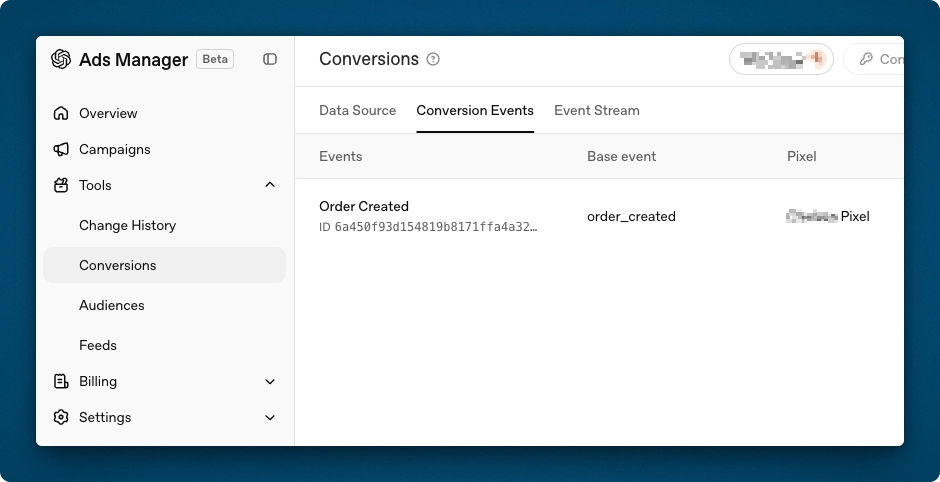
With the account plumbing in place, the other half of the job is measurement, and the architecture will feel familiar if you’ve implemented Meta’s Pixel with the Conversions API, or Google’s gtag alongside the Measurement Protocol. OpenAI gives you three ways to report conversions, and all three tie back to a single Pixel ID that you create in the conversions tab of Ads Manager.
The Three Reporting Channels
The JavaScript pixel (oaiq) is a browser SDK you install site-wide and fire events from the client. The image tag is a 1×1 <img> request for environments where JavaScript can’t run, limited to one event per request. The Conversions API is a server-to-server endpoint, and OpenAI explicitly describes it as a more reliable tracking source than the pixel alone.
Most implementations should use at least two of these. The pixel handles the automatic bookkeeping, the Conversions API handles the events that actually matter to your revenue, and the image tag exists as a fallback for the small percentage of sessions where JavaScript never executes.
Attribution and the oppref Parameter
Attribution flows through a privacy-preserving identifier called oppref. When someone clicks your ad inside ChatGPT, oppref arrives on your landing page URL as a query parameter. The JavaScript pixel captures it automatically and stores it in a first-party __oppref cookie so later page views can reuse the value.
The image tag and the Conversions API do not capture it for you. If you’re sending events from your server, reading and forwarding oppref is your responsibility, and skipping this step is the single most common reason a server-side setup silently reports unattributed conversions. Plan for it before you write a line of backend code.
The Minimum Viable Setup: Pixel Only
If you need conversion tracking live today, this is the whole job. Install the base snippet, then fire events at your conversion points. Two steps, and you’ll have attribution on ad clicks plus the tracking prerequisite for conversion-optimized campaigns.
Installing the Base Pixel
Add this to the <head> of every page where you want to capture conversions. OpenAI recommends placing it near the top of <head> so early conversions aren’t lost while the rest of the page loads.
<script>
  (function (w, d, s, u) {
    if (w.oaiq) return;
    var q = function () {
      q.q.push(arguments);
    };
    q.q = [];
    w.oaiq = q;
    var js = d.createElement(s);
    js.async = true;
    js.src = u;
    var f = d.getElementsByTagName(s)[0];
    f.parentNode.insertBefore(js, f);
  })(window, document, "script", "https://bzrcdn.openai.com/sdk/oaiq.min.js");

  oaiq("init", {
    pixelId: "<YOUR-PIXEL-ID>",
  });
</script>
pixelId is the only required config value. There’s an optional debug flag that logs SDK activity to the browser console, which is worth enabling while you’re testing and disabling before you ship.
On a WordPress site this belongs in your theme’s wp_head output or in your tag manager. If you’re deploying through Google Tag Manager, load it in a Custom HTML tag on All Pages, and make sure it fires as early as GTM will allow for the same reason OpenAI wants it high in the <head>.
What the Pixel Handles Automatically
Once the base snippet is in place, the SDK captures oppref from the landing page URL, stores it in the first-party __oppref cookie for later page views, attaches the current page origin as source_url, timestamps every event, and batches closely grouped measure calls.
None of that requires configuration. This is precisely why the pixel is the right starting point regardless of how sophisticated your final setup becomes, because it does the attribution bookkeeping that you’d otherwise have to build and maintain yourself.
Firing Conversion Events
Events use a single call signature with four arguments:
oaiq("measure", eventName, eventProps, eventOptions);
eventName must be one of the supported standard event names or the literal string custom. eventProps carries the event data and is technically optional, though the docs recommend sending it on every event so the type field is always explicit. eventOptions carries delivery options like event_id for deduplication and custom_event_name for custom events.
The event_id and custom_event_name values belong in eventOptions, the fourth argument, not in eventProps. The docs flag this with an explicit caution, and it’s the wiring mistake I’d expect most teams to make on their first implementation.
Here’s a completed purchase:
oaiq("measure", "order_created", {
  type: "contents",
  amount: 2599,
  currency: "USD",
  contents: [
    {
      id: "sku_123",
      name: "Starter bundle",
      content_type: "product",
      quantity: 1,
    },
  ],
});
Note that amount: 2599 is $25.99. All monetary values are integers in the currency’s lowest denomination, and any time you send an amount you must also send a currency as a three-letter ISO 4217 code. Quantities are integers as well. No floats, no strings.
A lead form submission is considerably simpler:
oaiq("measure", "lead_created", {
  type: "customer_action",
});
And a subscription signup sits in between:
oaiq("measure", "subscription_created", {
  type: "plan_enrollment",
  plan_id: "pro_monthly",
  amount: 2000,
  currency: "USD",
});
The Full Event Taxonomy
OpenAI supports eleven standard events, and each one maps to exactly one of four data shapes. Pair them incorrectly and the event is invalid, so this table is worth keeping open during implementation.
Standard Events and Their Data Types
| Event name | Data type | Use for |
|---|---|---|
page_viewed |
contents |
A user lands on or views an important page |
contents_viewed |
contents |
A user views a product, listing, article, or other content unit |
items_added |
contents |
A user adds items to a cart, bundle, or selection |
checkout_started |
contents |
A user starts checkout |
order_created |
contents |
A purchase is completed |
lead_created |
customer_action |
A user submits a lead form or requests contact |
registration_completed |
customer_action |
A user finishes an account or event registration flow |
appointment_scheduled |
customer_action |
A user books a meeting, demo, or consultation |
subscription_created |
plan_enrollment |
A paid subscription starts |
trial_started |
plan_enrollment |
A free trial starts |
custom |
custom |
Anything not covered by the standard taxonomy |
Two distinctions are worth internalizing. Use page_viewed for page loads and contents_viewed when a user views a specific product or content item, including interactions that happen after the page has loaded like a quick-view modal or a variant selection. The contents[] array accepts only the documented fields (id, name, content_type, quantity, amount, currency), all optional, and OpenAI rejects anything else you try to send.
Custom Events
Custom events keep eventName as custom, set eventProps.type to custom, and put the actual label in eventOptions.custom_event_name. Names must be 1-64 characters, contain only letters, numbers, underscores, or dashes, start and end with a letter or number, and can’t collide with a standard event name. Lowercase is the sane convention.
Custom events cannot be used as optimization goals for conversion-optimized campaigns, which is the reason to force-fit your conversions into the standard taxonomy wherever it’s reasonable to do so.
oaiq(
  "measure",
  "custom",
  {
    type: "custom",
    amount: 12999,
    currency: "USD",
    plan_id: "enterprise_annual",
  },
  {
    custom_event_name: "quote_requested",
    event_id: "quote_req_123",
  }
);
The Ideal Setup: Pixel + Conversions API, Synced
Browser-only tracking under-reports. Ad blockers, Safari’s ITP, and pages abandoned before the beacon fires all cost you conversions, and you already know this story from every other ad platform. OpenAI’s answer is the same as Meta’s: send the conversion from your server as well, and deduplicate against the browser event so it only counts once.
The Conversions API documentation states it directly, that it’s the more reliable source and OpenAI encourages using it whenever possible. The target architecture is three parts: the pixel on every page handling oppref capture and lightweight events, the Conversions API sending your high-value events from the backend where you have the order record and nothing can block the request, and both channels firing the same conversion with the same event ID.
Sending Server Events
You’ll need a Conversions API key, provisioned alongside your Pixel ID from the conversions tab in Ads Manager. Events POST to a single endpoint:
curl -X POST "https://bzr.openai.com/v1/events?pid=<PIXEL-ID>"
  -H "Authorization: Bearer <API-KEY>"
  -H "Content-Type: application/json"
  --data '{
    "validate_only": false,
    "events": [
      {
        "id": "order_12345",
        "type": "order_created",
        "timestamp_ms": 1773892800000,
        "oppref": "oppref_abc",
        "source_url": "https://shop.example.com/checkout/confirmation",
        "action_source": "web",
        "data": {
          "type": "contents",
          "amount": 2599,
          "currency": "USD",
          "contents": [
            {
              "id": "sku_123",
              "name": "Starter bundle",
              "content_type": "product",
              "quantity": 1
            }
          ]
        }
      }
    ]
  }'
The id field is your unique event identifier and doubles as the deduplication key when paired with type. The timestamp_ms value must fall within the last 7 days and no more than 10 minutes into the future, which matters if you’re backfilling from a queue. source_url is required whenever action_source is web.
The action_source field accepts web, mobile_app, offline, physical_store, phone_call, email, or other. That offline option is the interesting one, because it opens the door to CRM-driven conversion uploads for closed-won deals, phone sales, and in-store purchases.
Batching allows up to 1,000 events per request, but it’s all-or-nothing. If one event in a batch fails, the entire batch fails, so build your retry logic accordingly and keep experimental payloads out of production batches. Use validate_only: true liberally during development to validate a payload without saving it.
Deduplication
If the same conversion arrives from both the pixel and the server without coordination, it counts twice. The contract is short: the pixel event’s event_id and the API event’s id must be identical, both events must use the same Pixel ID, and for custom events both sides must also use the same custom_event_name.
Deduplication matches on Pixel ID plus event name plus event ID. In practice your order ID is the natural choice for that shared value:
oaiq(
  "measure",
  "order_created",
  {
    type: "contents",
    amount: 2599,
    currency: "USD",
  },
  {
    event_id: "order_12345",
  }
);
Your server then sends the same order_created event with "id": "order_12345" through the Conversions API. One conversion, two delivery paths, counted once. If you omit event_id on a pixel call the SDK generates one automatically, which is fine for client-only delivery and useless the moment you add a server-side channel.
One firm rule from the docs: never call the Conversions API endpoint from browser code. The pixel is for the browser, the API is for your server, and your API key has no business appearing in page source.
A Practical WordPress and WooCommerce Flow
The documentation is platform-agnostic, so here’s how I’d wire this on a typical WooCommerce build, with each step mapped to what the docs require.
Start with the pixel snippet in the <head> site-wide, which captures oppref into the __oppref cookie on the ad-click landing page automatically. On the server, read that cookie during checkout and store the value in order meta, because this is the “capture the value yourself” requirement the Conversions API docs call out. On the order confirmation page, fire the pixel’s order_created with event_id set to the order ID.
From a server-side hook on order completion, POST the same event to the Conversions API using the same event ID, the same Pixel ID, the stored oppref, action_source: "web", and the confirmation page URL as source_url. Run with validate_only: true in staging until your payloads pass clean. The pattern generalizes to any lead-gen or SaaS stack: capture oppref early, persist it with the user or session, replay it server-side with a shared event ID.
The Image Tag Fallback
The image tag exists for exactly one scenario, which is sending a conversion when a page loads and JavaScript can’t run. It’s a hidden 1×1 image in the <body> with event data riding on query parameters, each prefixed with data[...].
All dynamic values must be URL-encoded, and if you send data[contents] you serialize the array as JSON and URL-encode the entire string.
Using It Inside noscript
The most useful deployment wraps the tag in <noscript> so it only loads when JavaScript is unavailable, which complements the pixel instead of double-firing alongside it.
<noscript>
  <img
    src="https://bzr.openai.com/v1/sdk/events?pid=<PIXEL-ID>&event=page_viewed&data[type]=contents"
    width="1"
    height="1"
    style="display:none"
    alt=""
  />
</noscript>
Don’t wrap it in <noscript> if the image tag is your only integration on a page, because it will never fire for normal visitors. It participates in deduplication the same way the pixel does, so if the same conversion also goes through the Conversions API, use the image tag’s event_id as the API event’s id.
Known Limitations
The image tag fires on page load only, so it can’t measure clicks, form submissions, or anything else that happens after load. It sends one event per request with no batching, and it’s subject to URL-length limits, so large contents arrays simply won’t fit.
There’s no user object available, and you should never put personal data, secrets, session IDs, customer identifiers, or order identifiers into query parameters. It also doesn’t capture oppref automatically, so pass it explicitly only when your rendering layer already has the value. You can smoke-test the endpoint with curl, where an accepted request returns a 200 with a content type of image/gif, confirming the event was published to the ingestion pipeline rather than fully processed downstream.
Product Feeds for Catalog-Driven Ads
If you’re running ecommerce, product feeds let you connect your merchant catalog to a campaign instead of building an ad per SKU. OpenAI selects an eligible product at serving time and renders it through a template you define once.
The Four Moving Parts
| Part | Purpose |
|---|---|
| Product feed | Supplies the current merchant catalog |
| Campaign | Sets budget, schedule, targeting, and product_feed mode |
| Product set | Selects one linked feed and optionally filters which products can serve |
| Product-ad template | Defines how the selected product’s values appear in the ad |
Each layer constrains the one below it, so a misconfiguration at the feed level quietly kills delivery no matter how well the ad group and template are built.
Setup and Reporting
Create the feed connection in the Feeds area of Ads Manager and upload your catalog to the SFTP location shown there. This part is not exposed in the public Advertiser API, where POST /upload handles static creative assets only and there are no public endpoints for creating feed connections or uploading catalogs.
Mark products as ads-eligible with is_ads_eligible: true, noting that the legacy is_eligible_ads alias is still accepted and that eligibility is necessary but doesn’t guarantee serving. Create a campaign with mode: "product_feed", which is locked at creation and can’t be changed later, then create an ad group with a product_set pointing at your product_feed_id. Filters support in, gt, gte, lt, and lte, values are always strings even when they’re numbers like "4.5", and you can’t repeat the same field within one product set.
Finally, create one product_ad_template creative using tokens like {{product.title}}, {{product.body}}, and {{product.price}}. Unlike a chat_card creative, the template needs no file_id or target_url because the selected feed item supplies its own image and destination URL, and an ad group can hold at most one non-archived product-ad template. For reporting, request the product segment from any insights endpoint to break performance down by product.item_id, which is how you verify what’s actually serving.
Conversion-Optimized Campaigns
This is where the measurement work pays for itself. Conversion-optimized campaigns, or oCPC, optimize delivery toward one tracked conversion event while you continue paying per valid click.
| Goal | Best for | How you pay | Delivery optimizes for |
|---|---|---|---|
impressions (CPM) |
Reach and awareness | Per 1,000 impressions | Broad delivery at scale |
clicks (CPC) |
Engagement and traffic | Per valid click | Clicks from people likely to engage |
conversions (oCPC) |
A tracked post-click action | Per valid click, not per conversion | Clicks more likely to lead to your selected event |
Prerequisites
Your ad account must support conversion bidding. If campaign creation returns a 403 with Conversion bidding is not enabled, that’s a conversation with your OpenAI partner representative rather than a configuration you can fix yourself.
Conversion tracking must be in place through the pixel, the Conversions API, or both, and the docs again note the Conversions API as the more reliable source. You need exactly one active standard conversion event as the goal, custom events cannot serve as oCPC optimization goals, and the conversion event setting must belong to the current ad account and connect to one active conversion source. The quality of your tracking data feeds the optimization directly, which is why the server-side layer isn’t gold-plating.
Creating an oCPC Campaign
Campaign creation uses bidding_type: "conversions" along with a conversion event setting ID:
{
  "name": "Acme purchases",
  "status": "paused",
  "budget": {
    "lifetime_spend_limit_micros": 250000000
  },
  "bidding_type": "conversions",
  "conversion_event_setting_ids": ["ces_123"]
}
Child ad groups use billing_event_type: "click", and here’s the counterintuitive part: max_bid_micros is your CPA bid even though billing happens per click. A value of 100000000 means a $100.00 target cost-per-acquisition on a USD account. OpenAI uses that CPA bid alongside ad quality, relevance, click likelihood, and conversion likelihood to decide how aggressively to compete for clicks that are likely to convert. You’re still billed per valid click at whatever the auction determines, and the CPA bid is an optimization input rather than a conversion charge.
Immutability Rules
You can’t convert an existing CPM or CPC campaign to oCPC, and you can’t change the goal or the selected conversion event after creation. In both cases the answer is a new campaign.
Product-feed campaigns can’t use oCPC at all, so if you’re running catalog ads and conversion-optimized ads, those are two separate campaigns by design. When you evaluate performance, treat conversions as the primary outcome, calculate cost per conversion as spend divided by conversions, pick an event with enough volume for the system to learn from, and let it accumulate meaningful data before you start adjusting bids and budgets.
Rollout Sequence
If I’m sequencing this for a client, it breaks into four phases, and the second one is genuinely an afternoon of work.
Phase 0: Account Readiness
Submit business verification with your EIN and exact registered legal name on day one, since review time is dead time. While it’s pending, prepare the square dark-background logo and draft your context hints, titles, and descriptions against the character limits.
Phase 1: Minimum Viable Measurement
Create a Pixel ID in the conversions tab of Ads Manager, install the base pixel snippet in the <head> site-wide with debug: true, and add measure calls for your two or three real conversion events with correct data types and integer amounts. Verify in the browser console and Network panel, then disable debug before you ship.
Phase 2: Fully Optimized Measurement
Provision a Conversions API key, then persist oppref from the __oppref cookie into your session or order data server-side. Mirror your high-value events through the Conversions API using shared event IDs for deduplication, add <noscript> image tags as a fallback on critical pages, and test everything with validate_only: true before going live.
Phase 3: Campaigns
Confirm conversion events are flowing with real volume, then build the campaign, ad group, and ads exactly as walked through above: conversion objective, locations, budget, context hints, UTM-tagged tracking parameters, and creative that survives truncation. Attach included audiences for retargeting and excluded audiences for suppression, launch paused, review everything, and activate. For ecommerce, stand up the product feed over SFTP, mark items is_ads_eligible, and run a separate product_feed campaign, remembering it can’t use oCPC.
Conclusion
The setup half of this platform is where businesses actually stall: verification that needs your EIN and exact legal name, creative that has to survive a chat interface, context hints that behave nothing like keywords, and audiences that only work if your CRM keeps feeding them. None of it is hard, but none of it is in the developer docs either.
The measurement half is what makes the spend defensible. The pixel alone gets you attributed conversions and satisfies the tracking prerequisite for conversion-optimized campaigns, and the synced pixel and Conversions API setup recovers the conversions the browser would have dropped while preserving the oppref attribution signal end to end. Given that OpenAI’s conversion-optimized delivery is only as good as the data you feed it, doing both halves properly is the difference between running ads in ChatGPT and actually knowing what they’re worth.