 There are many ways to test a website in Internet Explorer. My cross browser testing workflow has recently changed, and I’ve found myself exploring the many options out there. Hopefully my research can save you some time. Here are the options I’ve come up with:
1. Utilu IE Collection free
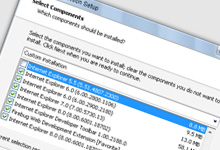
IE Collection contains multiple IE versions, which are standalone so they can be used at the same time. It includes versions from 1.0 (that’s scary) up to 8.0, and includes the developer toolbars in versions 5+. It seems to be a newer, beefed up version of the TredoSoft Multiple IE’s. This is my current choice for testing.
2. Spoon Browser Sandbox free
Spoon is a SaaS technology that allows you to run desktop apps anywhere using cloud-based access to software. Spoon Browser Sandbox was my go-to for browser testing, but recently Microsoft asked them to remove Internet Explorer from their service offering. They anticipate Microsoft will change this in the future, and if they do Spoon Browser Sandbox will continue to be a valuable tool for cross browser web development.
3. Litmus Alkaline $49/month
Litmus is an online service providing an email and browser testing suite. They provide a Mac OS X app called Alkaline that will allow you to leverage the Litmus system to run browser tests. Using a free account you can test Internet Explorer 7 and Firefox 2 for free. To gain access to all 8 browsers they support, you’ll need to sign-up for a paid account which starts at $49/month.
4. Microsoft Expression 3 Web Superpreview free
Microsoft has created Web Superpreview for web developers to address the many difficult needs of their browsers. It’s like pushing web developers off a cliff, and then offering to help us with their broken leg’s; But hey, we’ll take what we can get right?
“If you have installed IE8, you’ll be able to compare IE6, IE8 and IE8 running in IE7 compatibility mode, side-by-side. The final “shipping” version of SuperPreview for Internet Explorer will continue to be available for free. The Expression Web team hopes that it will be useful in helping to make the process of developing web pages for IE (and in general), faster and easier.”
It’s a pretty cool tool that offer’s a nice environment to get your design pixel perfect in IE.
Disadvantages
- It focuses on visual fixes, not interactive behavior. Testing JavaScript work is not possible.
- Each URL you want to test needs to be entered individually. This simply provides a screenshot display of each URL you enter. This means you’re testing pages 1 by 1. This workflow is very slow.
- There is no browsing or interactivity, so testing JavaScript is out of the question. For this you’ll need to rely on the limited capabilities of the Developer Tools extension for Explorer 8.
- When I test I work that refresh button like you wouldn’t believe. Using Windows XP in a virtual VM Ware environment, the fresh took about 10-20 seconds each time. This slow’s things down quite a bit.
To read more about it I recommend heading over the the Web Designer Depot article Microsoft Announces SuperPreview for IE Browser Testing.
5. TredoSoft Multiple IE free
This is an older method, and has it’s quarks, but regardless is a valuable option for many out there. I used to use this setup but eventually abandoned it because of the persistent prompt windows in IE6. At the time I last used it IE6 would prompt you anytime a website would load a resource from an external domain. With the rise of CDN’s, this became a little overwhelming. There may be a work-around for this, and if there is solves my #1 kvetch with this method.
6. BrowserShots.org free
Browser Shots will take a given URL and create rendered screenshots of that website in various clients. It supports a whole slew of browsers on various operating systems, Java, Flash, Javascript and screen resolutions. It’s really easy to use and free. There’s also a newer v2 beta version online now as well.
Disadvantages
- You’re at the whim of a service, and there can be a delay in the response of your screenshots.
- Taking screenshots of your local or robot-blocked staging environment may not be possible.
- No interactivity testing, just a screenshot
Bottom Line
There’s something to be said about testing a site using the same experience that a website user would have. Browser shot services and apps help give you a preview, but don’t provide a full interactive experience that matches a real user. When you go with an real browser you’re able to take certain things into account:
- Load time – IE has a significantly longer load time than Firefox. 5 seconds in Firefox might not seem so bad, but if it’s 10+ seconds in IE than it’s a problem.
- Interactivity – That jQuery transition looks great on Chrome using your Mac, but in Windows XP using IE6 it looks choppy and actually breaks the layout.
I prefer the real thing, so I’ve chosen to use the Utilu IE Collection to test my web work in Internet Explorer.